
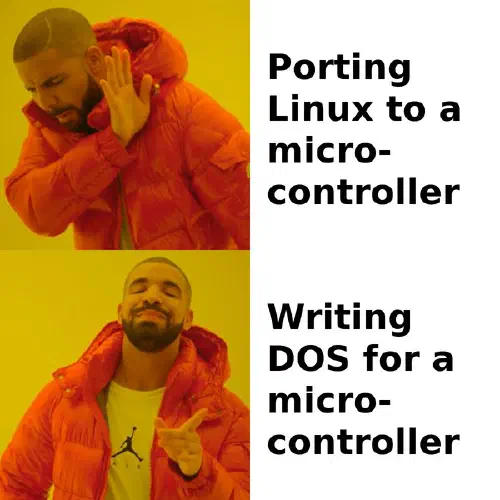
Remember when a computer was something you turned on and it just.. was a computer? You got a prompt, you typed the name of a program, and the program got the whole machine. No package manager arguing with another package manager, no forty background services phoning home, no waiting for the thing to finish deciding what it wanted to do today. I miss that. So I built one. Sort of. BMDS (Bare Metal Do Stuff) is a small DOS-like operating system for the ESP32-P4, and specifically for the Olimex ESP32-P4-PC board. You can find it here .
See It Run
Before I go any further, here’s a walkthrough of BMDS running on the actual board. It’s a much better introduction than anything I’m going to type out here, so go give it a watch.
Introduction
The Olimex ESP32-P4-PC is a neat little board. It’s got an ESP32-P4 on it, which is two RISC-V cores running at 360 MHz, 768 KB of internal RAM, and 32 MB of PSRAM. Add 16 MB of flash, HDMI out, four USB-A ports, 100 Mbit Ethernet, a microSD slot, and an audio codec with a headphone jack and you’ve got something that looks an awful lot like a computer. Heck, it looks a lot more like a computer than the machines I grew up on.
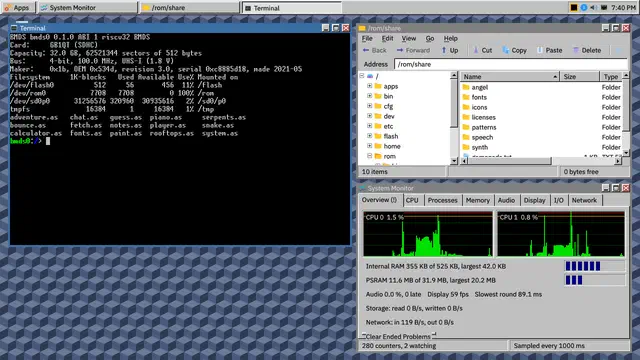
But it’s a microcontroller. And the usual way you use a microcontroller is you write a firmware that does one thing, flash it, and that’s that. If you want it to do something else, you write a different firmware and flash that. I wanted to see what happens if you treat the board like a PC instead: plug in a monitor, a keyboard and mouse, an SD card, and Ethernet, and get a desktop with windows, a shell, a file manager, an editor, sound, networking, games, and programs you install from packages.
So that’s what BMDS does.
DOS, Not Linux
The obvious question is: why not just run Linux on it? Well, a few reasons. The P4 doesn’t have an MMU that can give each program its own address space (it only maps flash and PSRAM, one table for both cores). And even if it could, 32 MB of RAM is a pretty tight squeeze for a modern Linux userland with a GUI on top of it. But honestly, the bigger reason is that I didn’t want Linux. I wanted DOS.
The model for BMDS is: one user, an operating system that provides services and then gets out of the way, and programs that get most of the machine. It uses FreeRTOS (through ESP-IDF) as the kernel, and BMDS provides everything above it:
- Drivers for the display (MIPI-DSI to the HDMI bridge), USB host, Ethernet, audio and the SD card
- A VFS over FAT32, exFAT, littlefs, a ROM filesystem and a RAM disk
- Consoles and pseudo-terminals
- A Bourne-style shell with pipes, redirection, job control and scripts (plus BusyBox’s tools)
- A window system and GUI toolkit
- A program loader that runs ELF files off the SD card
Programs are built separately from the OS with an SDK and talk to it through numbered system calls. And those system calls only ever get added to, never changed. Once a program runs on BMDS, it should keep running on every later version of BMDS. Don’t break userspace. Somebody smart said that once.
Inside, it’s written in C++20, but programs get a plain C interface. That’s deliberate, and I’ll get to why in a minute.
What It Does
Rather than give you the whole feature list (the README does a fine job of that), here’s a quick tour of the highlights.
Programming On the Machine
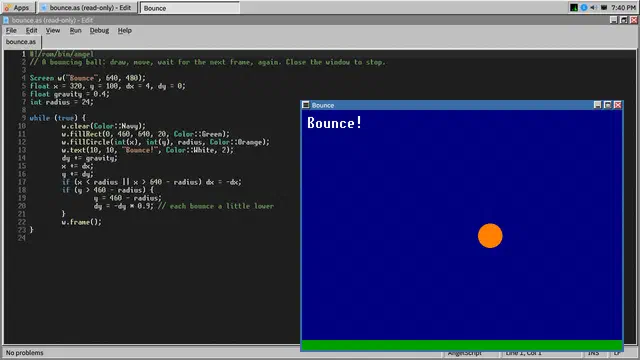
The thing I care the most about is being able to write programs on the machine itself. Edit is a little IDE for AngelScript . Write a script, hit F5, and it runs in its own window with access to graphics, sound, files and the network. It’s very much the “turn on the computer and start typing BASIC” experience, just with a few more decades of language design behind it. C programs are, for now, built with the SDK on a PC and run from the card.
Doom
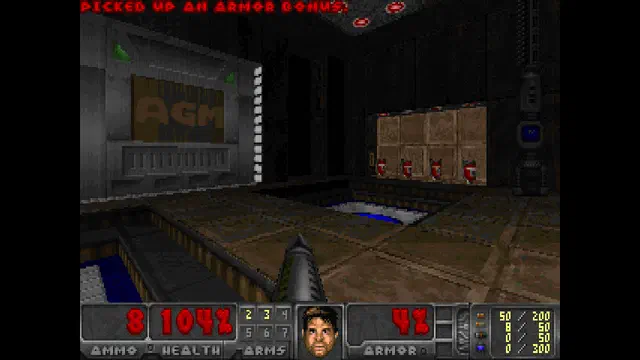
Of course it runs Doom. That’s the law. Full screen, with Freedoom’s levels, and the music is played through BMDS’s own synthesizer.
Games
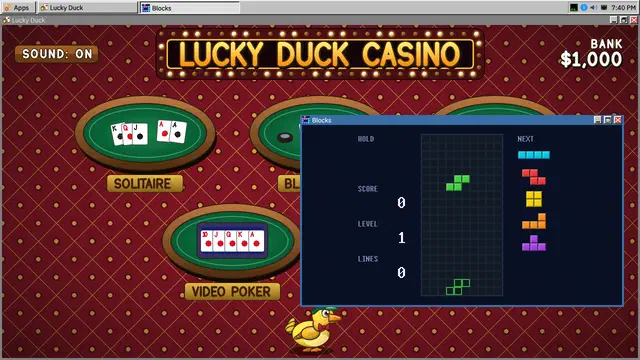
There’s Blocks (yes, the falling-blocks game, with its music on the synth) and Lucky Duck, a little casino with Solitaire, Blackjack, dice, Video Poker, and Poker against bot ducks. Gamepads work too.
Sound
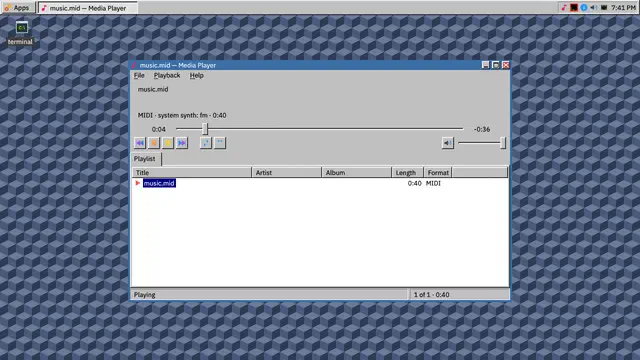
Given my background, you probably knew this one was coming. There’s a media player for MP3, FLAC, Ogg Vorbis, WAV and MIDI. There’s an FM synthesizer and a SoundFont synthesizer for MIDI. The board can show up to a PC as a USB MIDI device, or do MIDI over the network via AppleMIDI. And there’s a low-latency audio path for programs that need it.
A Desktop You Can Set Up
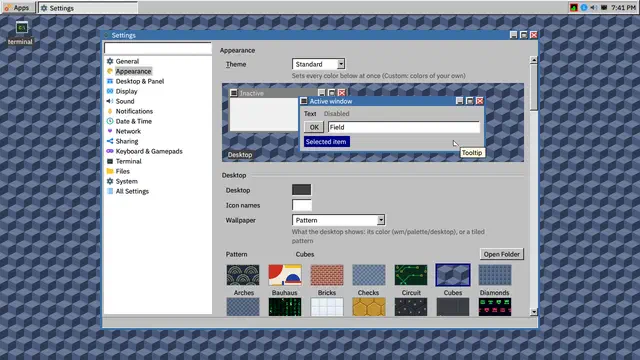
A panel with a launcher, window list and tray. Desktop icons. Themes, wallpaper patterns, and IBM
Plex fonts. Every setting is available in the Settings window or from the sysconf command if you’d
rather type.
And All The Plumbing
Under the windows there’s all the stuff you’d expect from a real computer: DHCP, DNS, mDNS (so the
board shows up as bmds0.local), NTP, and an SSH server with SFTP so you can log in from a PC or
mount the SD card with sshfs. There’s a pkg command that installs signed packages (with
dependencies) over HTTPS or from a folder on the card. And the firmware can update itself from a
signed update package, installed by a recovery firmware so an interrupted update can be finished
instead of leaving you with a brick.
Try It Yourself
If you’ve got an ESP32-P4-PC (with pre-v3.0 silicon, more on that in a sec), getting BMDS on it is pretty painless:
- Flash it from your browser using the web installer . You’ll need Chrome or Edge, since it uses Web Serial. It connects to the board over the USB-C port, checks the chip, and writes the latest release.
- Put in an SD card (FAT32 or exFAT) and plug in the monitor, keyboard, mouse and Ethernet.
- Install the standard set of packages from the window that greets a new card.
If you’d rather build it yourself, you’ll need ESP-IDF v6.1 and then it’s the usual:
. ~/esp/esp-idf/export.sh
idf.py set-target esp32p4
idf.py build
idf.py -p /dev/ttyACM0 flash
The details are in BUILDING.md .
The Fine Print
BMDS is young. It runs every day on the boards it was written on, but there are some rough edges you should know about:
- It’s one board and one chip revision. Boards with v3 silicon need a separate build that hasn’t been tried yet.
- 1280x720 is the only display mode.
- US keyboard layout only (for now).
- Programs share one address space. The P4’s MMU can’t give each program its own, but as of 0.3.0 BMDS uses the RISC-V PMP (Physical Memory Protection) to fence each program, running in U-mode, off to its own memory. Along with some exception catching, this means a program with a stray pointer just crashes instead of taking the whole machine down with it. It’s a system setting (on by default), so if you really want the full nostalgic DOS experience of one bad pointer locking up the whole box, you can turn it off. I won’t judge.
- No Wi-Fi or Bluetooth. The chip simply doesn’t have a radio.
Where It’s Going
The long-term goal is self-hosting: a C compiler, assembler and linker running on the board itself, so you can write and build programs entirely on BMDS. This is the reason the program interface is plain C (C99-compatible headers, musl, etc). A small compiler needs to be able to eat those headers. There are a few candidate paths here (TinyCC being the obvious one, although its RISC-V backend is 64 bit and the P4 is 32 bit), but that’s a topic for another day.
Beyond that, there’s a software store on top of pkg, a presentation app, and support for more
boards. The board-specific bits all live in a single board definition, so adding a new board should
mean writing a new definition instead of rewriting drivers.
BMDS is going to be a regular topic around here. There’s a lot to talk about: the program loader and the ABI, the window system, getting audio low-latency on a microcontroller, the chip’s tricks and pitfalls I ran into along the way, and of course the march towards self-hosting. Stay tuned.
A Word About AI
When Hackaday was kind enough to write up BMDS , the comments (as Hackaday comments do) turned to AI. So I’d rather just be upfront about it: I used Claude to build BMDS, and Claude wrote most of the code.
On AI in general, I’m pretty much in the same camp as Linus Torvalds. It’s a tool. A much more powerful tool than any I’ve used before, sure, but a tool. I’ve spent my career doing embedded programming, mostly embedded Linux, and I could have written all of the code in BMDS myself. But this is a hobby project, and hobby time is limited. Doing it by hand would have taken me years. With Claude, it took a few months.
And it wasn’t a case of typing “write me an OS” and going to get a coffee. I drove it incrementally, one piece at a time. I read the code and the documentation it produced. I ran experiments on the hardware. I told it when its ideas were bad (which happened) and steered it somewhere better. And I tested everything. Basically, the job looked a lot more like being the architect and lead engineer than the guy at the keyboard.
Honestly, I’ve written much less code for this project than for anything else I’ve built. And I was a little surprised to find it still scratches the same itch. The fun was never really the typing. It was the thinking about how the thing should work, and then seeing it actually work.
I’m not posting this to brag. But if you want anyone to know your project exists, you’ve got to do a little self-promotion. What I’m hoping for is to put something fun out into the world, have some good technical discussions about it, and maybe help somebody else who has the same itch I did. So go check out the repo , and if you’ve got one of these boards, give it a spin.